Quick answer
Learn what the Minecraft Locator Bar shows, how to read its colored player dots, who stays hidden, and how teams and commands change marker colors.
What is the Minecraft Locator Bar?
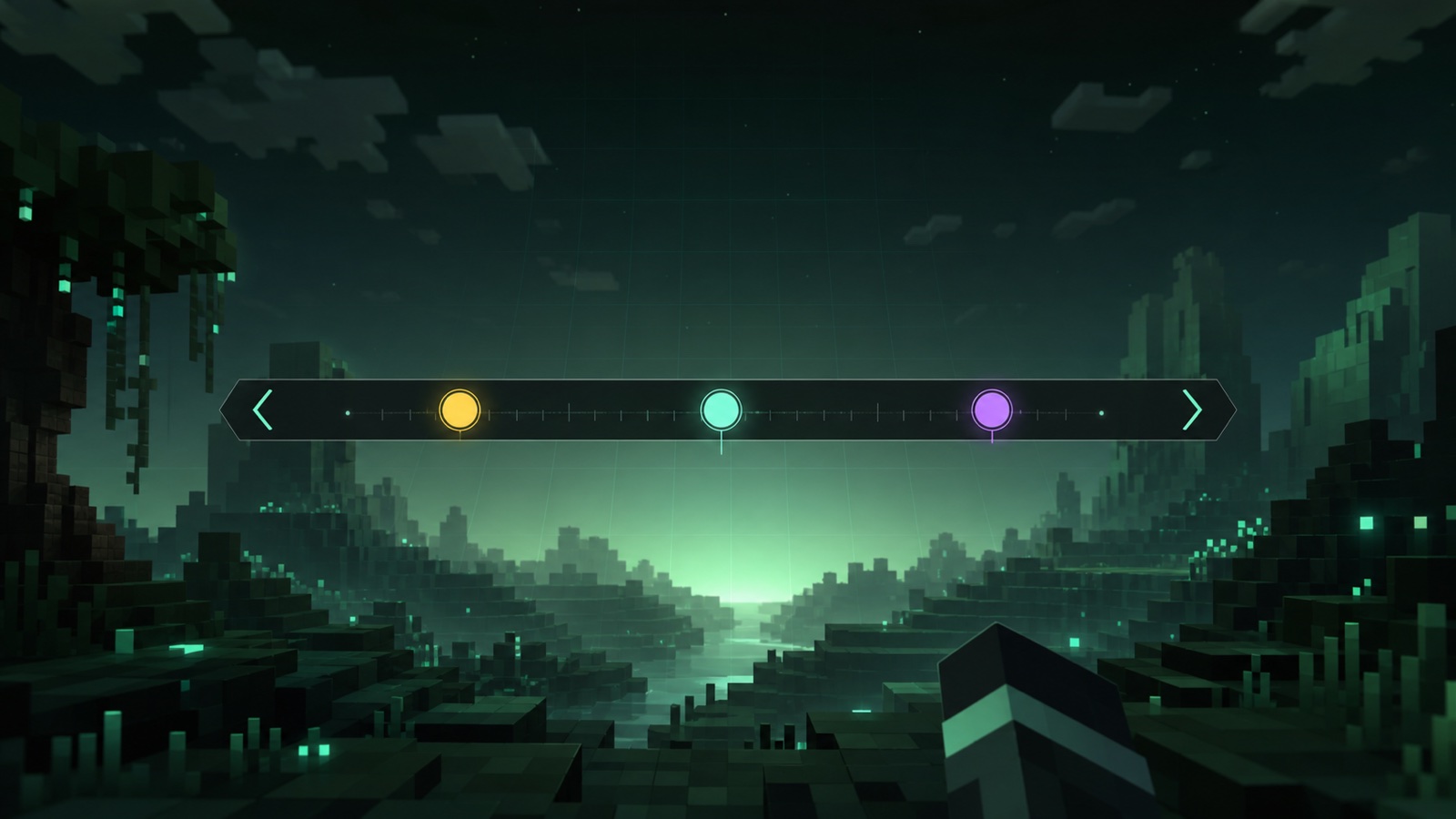
The Locator Bar is a Java Edition HUD element that uses colored indicators to show the direction of other visible players in multiplayer.
Minecraft added the Locator Bar to normal Java Edition gameplay in version 1.21.6. It occupies the experience-bar area when another eligible player is available to track. When experience is gained, the experience bar can temporarily return; when no other eligible player is present, the normal experience bar remains.
The bar is directional rather than a map. A marker moving left or right tells you how the target sits relative to the direction you are facing. Players above or below the screen can also receive an arrow, while marker size changes with distance.
How do you read Locator Bar dots?
Use horizontal position for direction, icon size for approximate distance, and arrow indicators for targets above or below your view.
A dot near the middle means the player is close to your current facing direction. Turn until the marker approaches the center, then use its size and any vertical arrow as supporting signals. The official release notes describe a 120-degree facing range for displaying player indicators.
A Locator Bar dot is not a precise coordinate or distance meter. Terrain, caves, floors, and vertical separation still matter. Treat it as a fast orientation aid, then communicate or use ordinary navigation to reach the player.
- Left or right position: relative direction from your current view.
- Larger or smaller marker: a distance cue, not an exact block count.
- Up or down arrow: the tracked player is outside the vertical screen area.
- Color: player identity, unless a team or explicit command overrides it.
Why is a player missing from the Locator Bar?
A player can disappear because they are crouching, invisible, wearing a mob head or carved pumpkin, in a spectator visibility case, or because the Locator Bar game rule is disabled.
Visibility is intentionally conditional. In vanilla Java Edition, players can hide by crouching, wearing a mob head or carved pumpkin, or using invisibility. Spectators normally do not appear to regular players, although spectators can see one another.
Server configuration matters too. Java 1.21.11 and later use the minecraft:locator_bar game rule ID, while 1.21.6 through 1.21.10 use the older locatorBar name. Server software, plugins, data packs, and later game versions can also change practical behavior, so verify the active server rules before assuming the HUD is broken.
Eligible player in range
Crouching or invisible
locatorBar gamerule off
Where does each Locator Bar color come from?
A player has a stable automatic fallback color, but a team color or an explicit /waypoint color can take priority.
The release notes describe automatic player colors as randomized. At the client level, the fallback can be reproduced from the normalized player UUID, so the same UUID produces the same calculated default color. That is the value returned by this site's Finder.
The automatic value is not guaranteed to be what you see on every server. A scoreboard team color overrides the fallback, and operators can explicitly set a waypoint color. If the result from a UUID does not match the HUD, check those higher-priority sources first.
How do you change a Locator Bar marker color?
Java Edition operators can use /waypoint modify with a single transmitting target and either a named color or a six-digit Hex value.
A simple named-color command looks like /waypoint modify @s color red. A custom value uses the hex form without a leading #, for example /waypoint modify Steve color hex 00E5B8. Broad selectors must resolve to one target, so @a or @e normally needs a constraint such as limit=1.
Nothing on this website runs a command against your game. Use the Generator to validate the syntax, then review and execute it with the permissions required by your single-player world, Realm, or server.
- Use the Finder when you want the automatic UUID-based color.
- Use the Checker when several player dots look too similar.
- Use the Generator when you are ready to build a copyable /waypoint command.
Sources & verification
References used for this guide
Documented behavior, public identity conventions, and this site's reproducible calculations are kept distinct.